
macOS Terminal Setup
In this post, we'll set up a fast, good-looking, and productive development environment on macOS, using the Ghostty terminal emulator, the Homebrew package manager, the Zsh shell with the Powerlevel10k theme, and the Neovim code editor. Here are the steps we'll follow:
- Install Ghostty
- Install Homebrew
- Install a Nerd Font
- Configure Ghostty
- Install command line tools
- Configure Zsh
- Set up Neovim
- Create a work directory
Step 1 - Install Ghostty
Ghostty is a fast, GPU-accelerated terminal. Download it here: https://ghostty.org/download
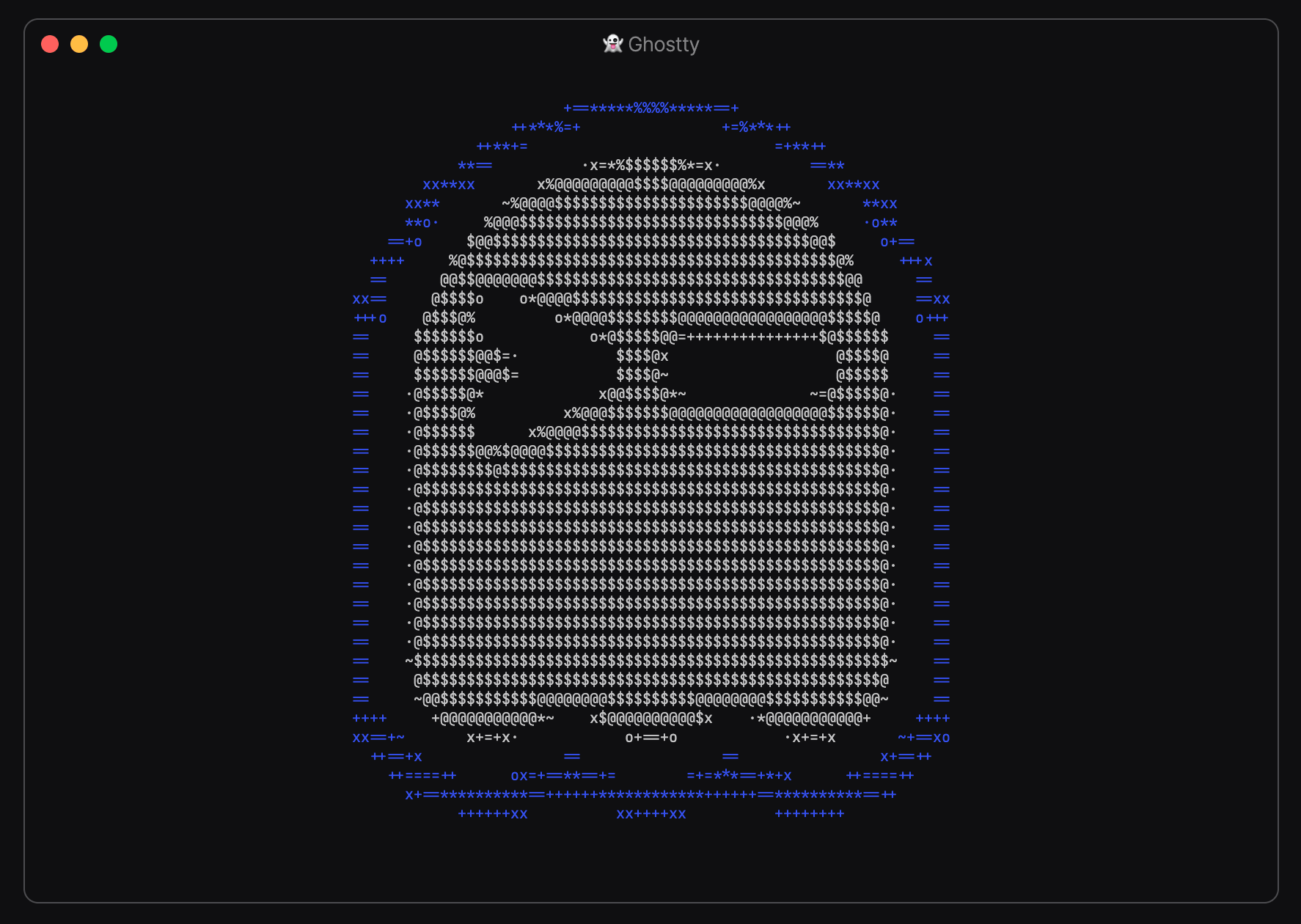
Install and open the app. The first time you launch it, you may have to manually approve it by going to System Settings → Privacy & Security to get past the macOS security warning.
Step 2 - Install Homebrew
Homebrew is the package manager we'll use to install command line tools and fonts. Follow the instructions on the official website or run the following command to install Homebrew:
/bin/bash -c "$(curl -fsSL https://raw.githubusercontent.com/Homebrew/install/HEAD/install.sh)"
After installation, make sure to add brew to your system PATH by running the commands printed at the end of the installer output. You can verify the installation by running:
brew --version
Step 3 - Install a Nerd Font

Nerd Fonts include the extra glyphs and icons that used by the Powerlevel10k terminal prompt theme we'll set up later. Run this command to install the Meslo Nerd Font:
brew install font-meslo-lg-nerd-font
Step 4 - Configure Ghostty
Open Ghostty's configuration file (Cmd + ,) and add the following settings:
background-opacity=0.7
background=#000000
font-family = MesloLGS Nerd Font Mono
macos-titlebar-style = tabs
window-padding-x=8
window-padding-y=8
maximize=true
font-size=14
shell-integration-features=sudo,ssh-env
This sets a translucent black background, the Meslo Nerd Font, tabbed titlebars, padding, and a maximized window. Save the file, quit and restart Ghostty to apply the changes.
Step 5 - Install Command Line Tools
Run this command to install some essential command line tools with Homebrew:
brew install git fzf ripgrep htop gh zoxide
Here's what each one does:
git- version control system for tracking changes in codefzf- fuzzy finder for searching files and command historyripgrep- extremely fast recursive search tool (rg)htop- interactive process and resource monitorgh- GitHub's official command line interfacezoxide- azcommand for directly jumping to your most-used directories
Next, authenticate the GitHub CLI so you can clone, push, and manage repositories:
gh auth login
Follow the on-screen prompts to complete the authentication in your browser. Then, configure your name and email used by the git CLI while committing changes:
git config --global user.name "Your Name"
git config --global user.email [email protected]
Step 6 - Configure Zsh
Zsh is an alternative to Bash and has been the default shell on macOS since Catalina (2019). It's largely compatible with Bash, but adds better tab completion, theming, and plugin support. The ~/.zshrc file configures your Zsh shell. Open it for editing as follows:
nano ~/.zshrc
Add the following configuration. It installs the zinit plugin manager, the Powerlevel10k theme, and a few essential plugins for syntax highlighting, completions, and autosuggestions:
function __git_prompt_git() {
  GIT_OPTIONAL_LOCKS=0 command git "$@"
}

# Outputs the name of the current branch
function git_current_branch() {
  local ref
  ref=$(__git_prompt_git symbolic-ref --quiet HEAD 2> /dev/null)
  local ret=$?
  if [[ $ret != 0 ]]; then
    [[ $ret == 128 ]] && return  # no git repo.
    ref=$(__git_prompt_git rev-parse --short HEAD 2> /dev/null) || return
  fi
  echo ${ref#refs/heads/}
}

# Enable full color support
export TERM=xterm-256color

# Install (if absent) and initialize zinit plugin manager
ZINIT_HOME="${XDG_DATA_HOME:-${HOME}/.local/share}/zinit/zinit.git"
[ ! -d $ZINIT_HOME ] && mkdir -p "$(dirname $ZINIT_HOME)"
[ ! -d $ZINIT_HOME/.git ] && git clone https://github.com/zdharma-continuum/zinit.git "$ZINIT_HOME"
source "${ZINIT_HOME}/zinit.zsh"

# Use the Powerlevel10k theme
zinit ice depth=1; zinit light romkatv/powerlevel10k

# Essential Zsh plugins
zinit light zsh-users/zsh-syntax-highlighting
zinit light zsh-users/zsh-completions
zinit light zsh-users/zsh-autosuggestions

# git shortcuts: https://github.com/ohmyzsh/ohmyzsh/tree/master/plugins/git
zinit snippet OMZP::git
zinit snippet OMZP::gh

# Register completions from plugins
autoload -U compinit && compinit
zinit cdreplay -q

# Load Powerlevel10k configuration; To customize run `p10k configure`
[[ ! -f ~/.p10k.zsh ]] || source ~/.p10k.zsh

# Save command history
HISTSIZE=5000
HISTFILE=~/.zsh_history
SAVEHIST=$HISTSIZE
HISTDUP=erase
setopt appendhistory
setopt sharehistory
setopt hist_ignore_space
setopt hist_ignore_all_dups
setopt hist_save_no_dups
setopt hist_ignore_dups
setopt hist_find_no_dups

# Enable case insensitive completions
zstyle ':completion:*' matcher-list 'm:{a-z}={A-Za-z}'

# Show colors in ls output
alias ls='ls -G'

# Use fzf for searching command history
source /opt/homebrew/opt/fzf/shell/completion.zsh
source /opt/homebrew/opt/fzf/shell/key-bindings.zsh

# Use zoxide as a smarter cd command
eval "$(zoxide init zsh)"
Save the file with Ctrl+o, then exit with Ctrl+x. Open a new terminal window (or run source ~/.zshrc) to apply the changes. The first launch will install the plugins, and let you configure Powerlevel10k. Respond as follows for a minimal but comprehensive prompt:
- Prompt Style: (1) Lean
- Character Set: (1) Unicode
- Prompt Colors: (2) 8 colors
- Show current time? (n) No
- Prompt Height: (1) One line
- Prompt Spacing: (1) Compact
- Icons: (1) Few icons
- Prompt Flow: (1) Concise
- Enable Transient Prompt? (n) No
- Instant Prompt Mode: (1) Verbose

Here are a few tips to get the most out of this setup:
- Autosuggestions: As you type, Zsh suggests a completion from your history in gray. Press the
→(right arrow) key to accept it, orCtrl+→to accept one word at a time. - History search: Press
Ctrl+Rto fuzzy-search your command history withfzf. Keep typing to narrow the results, then pressEnterto run the selected command. - Directory jumping: Use the
zcommand to jump to recently visited folders (z ghosttyinstead ofcd ~/work/ghostty). Runzito pick from matching directories interactively. - Git shortcuts: The
gitplugin adds handy aliases likegst(git status),gco(git checkout),gp(git push), andglog(git loggraph). See the full list. - Syntax highlighting: Commands turn green when valid and red when not, so you can catch typos before pressing
Enter.
Step 7 - Set Up Neovim
You'll probably do most of your editing in a graphical IDE like Cursor, Codium, or VS Code, but it's also nice to have a modern & capable editor you can reach for right in the terminal.

Neovim is a modern, extensible terminal-based code editor. We'll install Neovim and set up LazyVim, a preconfigured collection of plugins that turn Neovim into a full-fledged integrated development environment (IDE). Run these commands to install Neovim and set up LazyVim:
brew install neovim
git clone https://github.com/LazyVim/starter ~/.config/nvim
rm -rf ~/.config/nvim/.git
Open a new terminal window, then run the nvim command to start Neovim and initialize all the plugins included with the LazyVim config. Watch this short tutorial to learn more.
Step 8 - Create a Work Directory
Run these commands to create & enter a dedicated ~/work directory for your projects:
mkdir -p ~/work
cd ~/work
You can now clone & work with repositories from GitHub inside ~/work using the git CLI:
git clone https://github.com/ghostty-org/ghostty
Conclusion
We set up a complete terminal environment on macOS, with a modern terminal emulator, a package manager, useful command line tools, and a customized Zsh shell. This setup gives you a fast, productive, and pleasant foundation for day-to-day development work.